
Quick Answer: Node.js hosting on cPanel works through the Setup Node.js App tool, which runs your application behind Apache or LiteSpeed using Passenger. You select a Node version, point the tool at your startup file, install packages with npm, and the server proxies web traffic to your app. Shared plans with Node.js support start at $2.93 per month.
Node.js hosting on cPanel confuses developers because Node apps do not work like PHP sites. There is no index.php to drop in a folder. A Node application is a running process that listens on a port, and shared servers do not hand out open ports.
cPanel solves this with Phusion Passenger. Passenger sits between the web server and your app, starts your process on demand, and routes requests to it. Consequently, you can run Express, Fastify, or a Next.js server on hosting that costs less than a coffee. This guide walks through the exact deployment, then covers the errors that break most first attempts.
What You Need Before You Start?
- A hosting plan that lists Node.js support. On Bisup, that is the Business plan at $2.93 per month or Enterprise at $3.85, both with NVMe storage and unmetered bandwidth.
- Your application code with a package.json and a defined start file such as app.js or server.js.
- A domain or subdomain pointed at the hosting account with SSL active. Free SSL is included, so HTTPS costs nothing.
- Optional but useful: SSH access for running npm commands directly.
Deploy a Node.js App on cPanel in 7 Steps
- Step 1: Log in to cPanel and open Setup Node.js App under the Software section.
- Step 2: Click Create Application and choose your Node.js version. Match the version you developed against.
- Step 3: Set the application root to a folder outside public_html, for example nodeapp.
- Step 4: Set the application URL to your domain or subdomain and the startup file to app.js.
- Step 5: Upload your code to the application root using Git, the file manager, or SFTP.
- Step 6: Click Run NPM Install to pull dependencies from package.json.
- Step 7: Restart the application and open your URL. Passenger now serves the app.
Environment variables live in the same interface, so database credentials never sit in your code. To run CLI commands, activate the virtual environment string shown at the top of the app screen inside an SSH session, then use npm and node normally.
Fixing the 5 Most Common Node.js on cPanel Errors
Real deployments fail in predictable ways. These five fixes resolve the large majority of support tickets on shared Node hosting.
- App shows raw source code: the application URL points at public_html instead of the Passenger app. Recreate the app with the correct root.
- 503 errors after deploy: the startup file name in cPanel does not match your actual entry file. Correct it and restart.
- Port binding errors: do not hardcode port 3000. Listen on process.env.PORT so Passenger assigns the port.
- npm install fails on memory: shared plans cap processes. Install heavy dependencies locally and upload node_modules, or upgrade RAM. Bisup Business includes 4 GB RAM, which handles typical Express and Next.js builds.
- Websockets not connecting: long lived socket connections need ASGI style infrastructure. Move real time apps to a VPS with root access.
Shared Node.js Hosting vs VPS: Which Do You Need?
Shared Node hosting fits APIs, small Express sites, bots, and server rendered apps with moderate traffic. It removes server maintenance completely and costs under $4 per month.
A VPS fits production workloads, websockets, PM2 process clusters, and apps needing custom system packages. The Bisup Professional VPS at $29.99 per month provides 8 AMD vCPU, 16 GB RAM, 240 GB NVMe storage, and full root access. Start shared, measure, then scale. That order protects your budget. If you also ship Python projects, see our Django hosting guide.
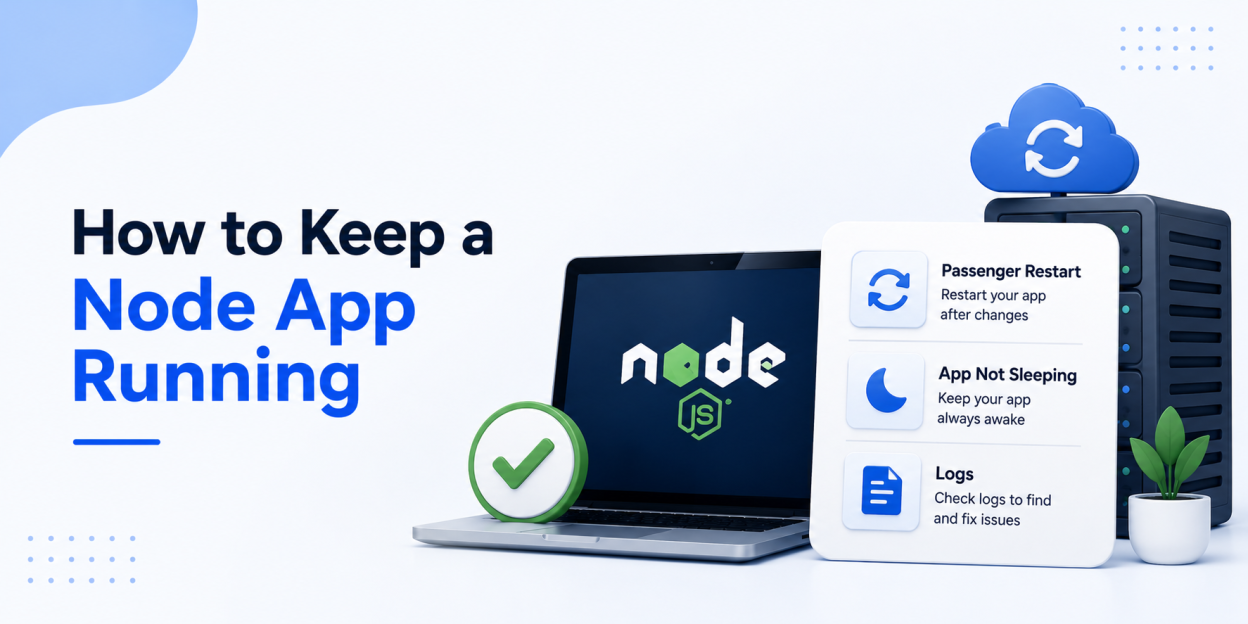
How to Keep a Node.js App Running on cPanel?
On cPanel shared hosting, Passenger—not PM2—normally manages the Node.js process. Passenger starts the application when traffic arrives and can restart it after a crash or deployment. Your job is to use the hosting platform’s process model instead of trying to run node app.js permanently in an SSH session.
Use this production checklist:
- Restart after a deployment: use Restart Application in Setup Node.js App. On Passenger systems that support it, touching tmp/restart.txt also tells Passenger to reload the application.
- Do not hardcode a port: listen on process.env.PORT so Passenger can route requests to the correct process.
- Keep the startup file accurate: app.js, server.js, or the file configured in Application Manager must exist at the application root.
- Check idle-process rules: some shared hosts scale idle apps down and wake them on the next request. Ask support about idle timeouts and process limits rather than using artificial uptime pings.
- Read the logs first: check the app’s configured stderr or log file and cPanel’s error view after every 503. Exact paths vary by host, so confirm the location in Application Manager or with support.
- Move persistent workers elsewhere: queues, websocket servers, cron-like workers, and PM2 clusters need a VPS or a hosting plan that explicitly supports long-running background processes.
cPanel documents the Passenger restart method using a tmp/restart.txt file in its Node.js application guide. If a restart does not clear a 503, verify the startup file, dependencies, environment variables, and application logs before recreating the app.
Frequently Asked Questions
Yes. cPanel hosts with the Setup Node.js App tool run Node applications through Passenger. Bisup includes this on Business and Enterprise shared plans.
Express, Fastify, Koa, NestJS, and Next.js in server mode all run under Passenger. Apps requiring persistent websocket connections work better on a VPS.
Use the Run NPM Install button inside Setup Node.js App, or activate the virtual environment over SSH and run npm install manually.
A 503 usually means Passenger cannot start your process. Check that the startup file name matches, dependencies installed, and the app listens on process.env.PORT.


[…] fits naturally into open-source and PHP-based stacks, and it pairs cleanly with Node.js hosting environments through drivers like mysql2 and Prisma. MSSQL integrates most smoothly with .NET […]