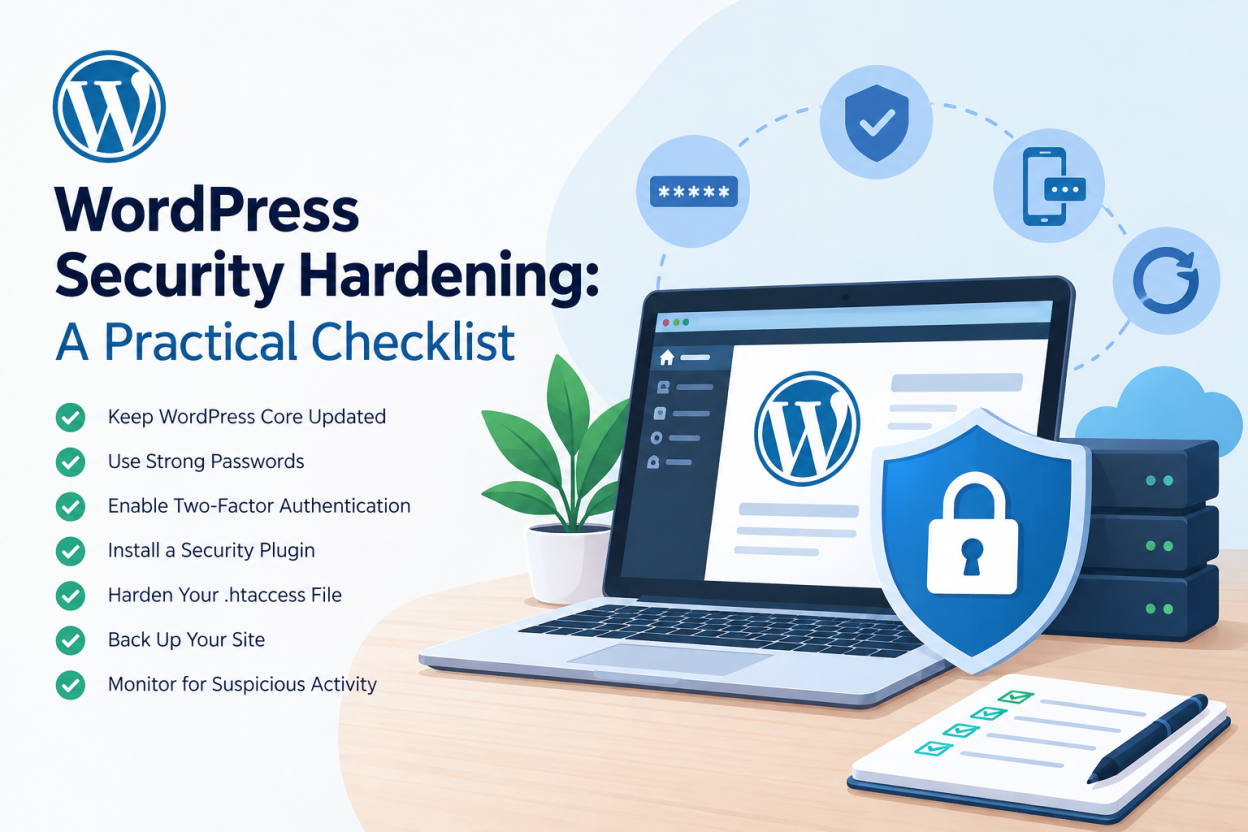
WordPress security hardening means reducing the ways an attacker can get in. Start with updates, strong passwords and two-factor login. Then limit user roles, lock down wp-config.php, set correct file permissions, and disable the file editor. Finish with server-level scanning, a firewall and tested offsite backups.
Most WordPress sites are not hacked by clever attacks. They are hacked through an outdated plugin, a reused password, or an admin account nobody remembers creating.
WordPress security hardening fixes those weak points in a sensible order. This checklist starts with the steps that stop the most attacks for the least effort. It ends with server-level protection that plugins cannot provide.
The official WordPress hardening documentation covers the same ground in more technical depth. Use it alongside this guide.
Why Hardening Order Matters More Than Plugin Count
Installing five security plugins does not make a site five times safer. Each plugin adds code, and code can carry its own vulnerabilities.
Hardening works best when you close the widest doors first. For WordPress, the widest doors are known, public vulnerabilities in outdated software and weak logins. Fix those before anything else.
The order below follows that logic. Each step reduces risk more than the one after it.
Keeping WordPress Core, Plugins and Themes Updated
Outdated plugins are among the most common causes of WordPress compromises. When a vulnerability is disclosed, attackers scan the web for sites still running the old version.
Take these steps:
- Enable automatic minor core updates. WordPress applies security releases this way by default.
- Turn on automatic updates for trusted, well-maintained plugins. WordPress has supported this from the Plugins screen since version 5.5.
- Delete plugins and themes you do not use. Deactivated code can still be exploited if its files remain on the server.
- Avoid “nulled” premium plugins from unofficial sources. They frequently contain hidden backdoors.
Check the update history of any plugin before installing it. A plugin not updated in years is a risk even if it works today.
Login Protection: Passwords, Two-Factor Authentication and Rate Limiting
The WordPress login page is a constant target for automated password guessing. Protecting it closes the second widest door.
Strong unique passwords
Every account with admin access needs a long, unique password. A password manager makes this practical. Reused passwords are dangerous because leaked credentials from other sites get tried on yours.
Two-factor authentication
Two-factor authentication (2FA) asks for a second code after the password. Even a stolen password then fails on its own. Several reputable plugins add 2FA with authenticator apps.
Rate limiting login attempts
Limit how many failed logins one IP address can make. This slows brute force attacks to the point of being useless. Many hosts also do this at the server level, which is more efficient than a plugin.
Avoid using “admin” as a username. It is the first name attackers try.
User Roles and the Principle of Least Privilege
WordPress has built-in roles: Administrator, Editor, Author, Contributor and Subscriber. Each role has a different set of permissions.
Give each person the lowest role that lets them do their job. A writer does not need Administrator access. A client reviewing drafts does not need Editor access.
Review your user list every few months. Remove accounts for former staff, old agencies and freelancers. Forgotten admin accounts are a quiet but serious risk.
wp-config.php Security Settings
The wp-config.php file holds your database credentials and security keys. It deserves special protection.
Security keys and salts
WordPress uses secret keys and salts to protect login cookies. Generate fresh ones from the official WordPress secret key service and paste them into wp-config.php. Changing them logs out every user, which is useful after a suspected breach.
Disabling the built-in file editor
By default, admins can edit theme and plugin files from the dashboard. If an attacker gains admin access, this editor lets them insert malicious code instantly.
Add this line to wp-config.php to turn it off:
define( ‘DISALLOW_FILE_EDIT’, true );
Forcing HTTPS for the admin area
Add define( ‘FORCE_SSL_ADMIN’, true ); so logins and admin sessions always use an encrypted connection. Your site needs a working SSL certificate first. Our guide to SSL certificates explains the options.
File Permissions and Ownership on the Server
File permissions control who can read, write and execute files on the server. Loose permissions let a compromised process modify your site.
The WordPress documentation recommends these general settings:
- Directories set to 755.
- Files set to 644.
- wp-config.php tightened further, such as 440 or 400, where your server setup allows.
Never set anything to 777. That lets any process on the server write to the file.
Ownership matters as much as permissions. Files should belong to your hosting account user, not a shared web server user. On shared hosting, your host controls much of this. Ask them how accounts are isolated from each other.
Disabling XML-RPC When You Do Not Need It
XML-RPC is an older interface that lets external apps talk to WordPress. It is also a popular route for brute force attacks, because it can test many passwords in one request.
If you do not use the WordPress mobile app, Jetpack or a remote publishing tool, you can block xmlrpc.php. Many security plugins and host firewalls offer a switch for this.
Newer integrations usually use the REST API and application passwords instead, so blocking XML-RPC rarely breaks modern sites. Test after blocking it.
Server-Level Scanning and Web Application Firewalls
Plugins run inside WordPress. If WordPress itself is compromised, a security plugin can be disabled or fooled by the same attacker.
Server-level tools sit outside WordPress and avoid that weakness.
- Malware scanners at the server level check files across the whole account, including areas a plugin cannot see.
- A web application firewall (WAF) filters malicious requests before they reach WordPress.
- Account isolation prevents one compromised site from infecting neighbours on shared hosting.
We explain the difference in more depth in server-level scanning vs plugin security. When choosing a host, ask which of these protections are active on your plan, not just listed on the sales page.
For common attack types these tools defend against, the OWASP Top Ten is the standard reference.
Backups as the Final Hardening Layer
No hardening is perfect. Backups decide whether a breach costs you an hour or your whole site.
A good WordPress backup setup has three traits:
- It runs automatically on a schedule that matches how often your site changes.
- It stores copies away from the web server itself.
- It has been restored at least once as a test.
An untested backup is a hope, not a plan. Our website backup guide covers retention and restore testing.
Monitoring and Logging After Hardening
Hardening is not a one-time task. New plugins, new users and new vulnerabilities appear constantly.
Set up simple monitoring:
- Uptime alerts so you know quickly if the site goes down.
- Email alerts for new admin users or plugin installs.
- A monthly check of updates, users and backups.
If you ever see strange redirects, unknown admin users or spam pages in search results, act quickly. Our guide on how to clean a hacked WordPress site walks through recovery in order.
PHP Version and Server Software Updates
WordPress runs on PHP, and old PHP versions stop receiving security fixes. Running an unsupported version leaves the server exposed even if WordPress itself is updated.
Check which PHP version your site uses in your control panel. Move to a currently supported version, after testing that your theme and plugins work with it. The official PHP supported versions page shows which releases still receive security updates.
On shared hosting, your host maintains the web server and database software. Ask how quickly they apply security patches. On a VPS, that job is yours.
Limiting User Enumeration and REST API Exposure
Attackers often start by finding valid usernames. WordPress can reveal them through author archive URLs and some REST API endpoints.
Once they have a username, they only need to guess the password. You can reduce this risk by:
- Setting a display name that differs from the login username.
- Blocking author enumeration through a security plugin or firewall rule.
- Restricting REST API user endpoints to logged-in users where your site allows it.
Test your site after any REST API change. Some plugins and the block editor rely on it.
Adding HTTP Security Headers
Security headers tell browsers how to handle your site safely. They help block some cross-site scripting and clickjacking attacks.
Useful headers include Strict-Transport-Security, X-Content-Type-Options, X-Frame-Options and a Content-Security-Policy. You can set them at the server level or through a plugin.
Start with the simpler headers. Content-Security-Policy needs careful testing, as a strict policy can block legitimate scripts.
WordPress Security Hardening Checklist Summary
Use this order when hardening a new or existing site:
Monitor uptime, users and changes every month.
Update core, plugins and themes, and delete unused ones.
Use strong unique passwords and turn on two-factor authentication.
Limit login attempts and avoid the “admin” username.
Assign the lowest workable user role to each person.
Refresh security keys and disable the file editor in wp-config.php.
Set directories to 755 and files to 644, and tighten wp-config.php.
Block XML-RPC if you do not use it.
Use server-level scanning and a web application firewall.
Keep automatic offsite backups and test a restore.
WordPress Hardening FAQ
WordPress core is maintained by a dedicated security team and patched quickly. Most breaches come from plugins, themes, weak passwords and poor hosting, not core itself.
Server-level scanning covers a lot. A light plugin can still add 2FA and login alerts. Avoid stacking several full security suites, as they overlap and slow the site.
Directories at 755 and files at 644 suit most setups. Protect wp-config.php further, such as 440 or 400, if your server allows it. Never use 777.
Changing the login URL cuts automated bot noise. It is not real security on its own. Strong passwords, 2FA and rate limiting do the actual protection.
Check updates weekly and do a fuller review of users, plugins and backups monthly. Review immediately after any staff change or suspicious activity.
Yes. Account isolation, server firewalls, malware scanning and timely PHP updates all happen at the host level. A plugin cannot replace them. See our WordPress hosting plans for what a hosting stack can cover