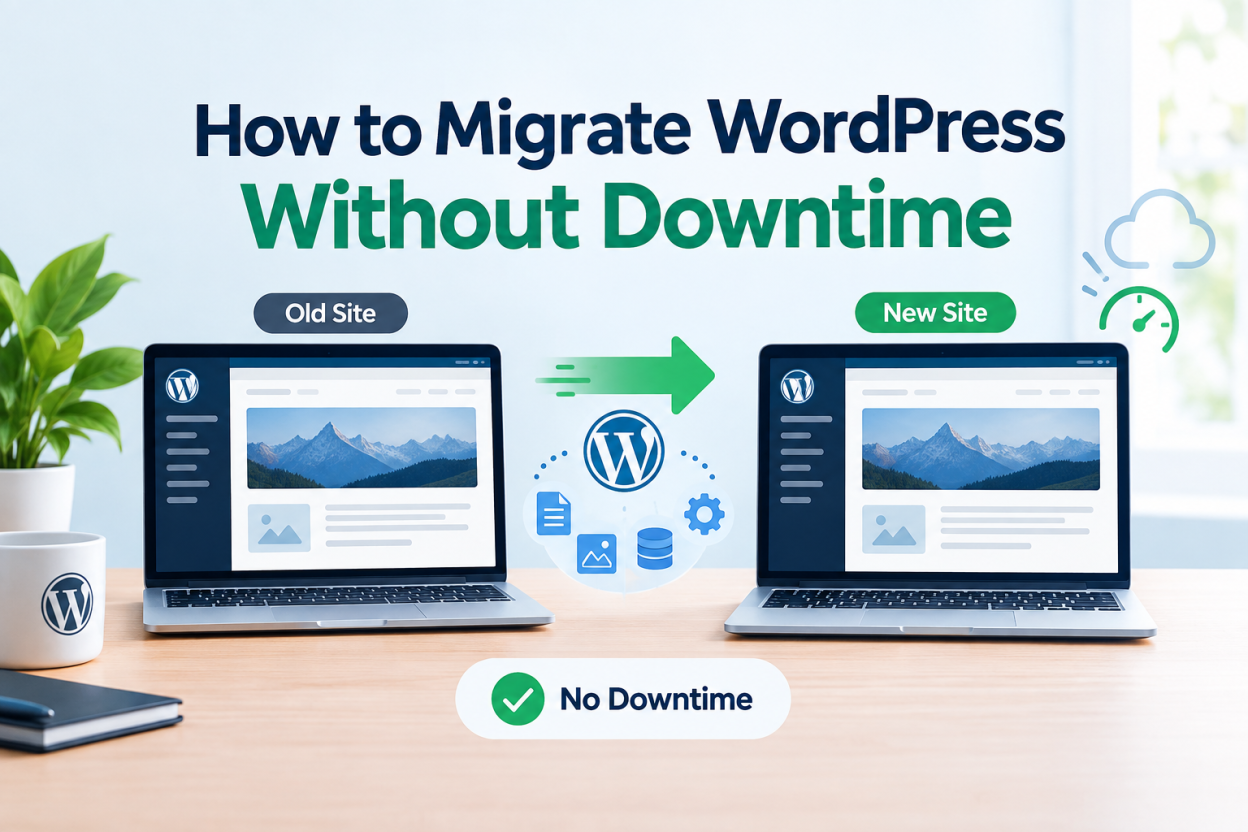
To migrate WordPress to a new host without downtime, copy the files and database to the new server while the old site stays live. Test the new copy using a hosts file override. Lower your DNS TTL a day ahead, then switch DNS. Keep the old hosting active for several days until traffic fully moves.
When you migrate WordPress to a new host, the risk is rarely the copy itself. The risk is the gap between the old server and the new one. Visitors hit a blank page, emails bounce, or orders land on the wrong database.
This guide shows a migration path that keeps the old site serving visitors until the new one is proven. It covers the files, the MySQL database, testing, DNS timing, and the loose ends most guides skip.
What a WordPress Migration Actually Moves
A WordPress site has two parts. Both must arrive intact on the new server.
The first part is the file system. This includes WordPress core, the wp-content folder with themes, plugins and uploads, and the wp-config.php file.
The second part is the database. WordPress stores posts, pages, settings, users, and plugin data in MySQL or MariaDB. Without the database, the files show an empty install.
Several things sit outside WordPress and often get forgotten:
- DNS records, including MX records for email and TXT records for verification.
- Email accounts hosted on the same server as the website.
- SSL certificates, which are tied to the server and must be issued again.
- Cron jobs and server-level settings such as PHP version and memory limits.
List all of these before you start. A migration checklist written up front prevents most surprises.
Preparing the Old Host Before the Move
Start with a full backup of the old site. Keep it somewhere that is not on either server. This backup is your rollback if anything goes wrong.
Next, record the current environment. Note the PHP version, the database version, and any custom settings in .htaccess or php.ini. Your new host should match or exceed these versions.
Then open wp-config.php and note four values: DB_NAME, DB_USER, DB_PASSWORD and DB_HOST. Also note the table prefix, which is often wp_ but not always. You will need these on the new server.
Finally, update WordPress core, themes and plugins on the old site. Migrating an outdated site moves its problems with it.
Lowering DNS TTL a Day Before the Cutover
TTL stands for time to live. It tells resolvers how long to cache your DNS answer before asking again.
If your A record has a TTL of 86400 seconds, some visitors may keep reaching the old server for a full day after you switch. That is where most downtime complaints come from.
Lower the TTL to 300 seconds at least one full old-TTL period before the move. If the old TTL was 24 hours, make the change 24 hours ahead. After the migration settles, you can raise it again.
If you plan to change nameservers rather than just the A record, note that nameserver changes at the registry often take longer. Lowering the TTL still helps, but budget for a longer overlap.
Copying WordPress Files and the MySQL Database
You can move the site manually or with a plugin. The manual method gives you more control and works for large sites.
Manual WordPress transfer
- Compress the WordPress directory on the old host into a single archive, using the File Manager or SSH.
- Export the database with phpMyAdmin or the command mysqldump.
- Create a new database and database user on the new host.
- Upload and extract the archive into the new site’s document root.
- Import the database file into the new database.
- Edit wp-config.php on the new server with the new database name, user, password and host.
If the domain stays the same, you do not need to change URLs in the database. If the domain or protocol changes, use a tool that understands serialized data. The WP-CLI search-replace command handles this safely. A plain text find and replace can break widget and plugin settings.
Plugin-based WordPress migration
Plugins such as Duplicator, All-in-One WP Migration and Migrate Guru package the site for you. They suit small and medium sites well.
Watch for limits. Free versions often cap archive size, and very large media libraries can time out. Check the plugin’s current limits before you rely on it for a big site.
Testing the New Server With a Hosts File Override
This step is what makes a no-downtime migration possible. You view the new server under your real domain while everyone else still sees the old one.
Your computer’s hosts file lets you point a domain at a specific IP address, bypassing public DNS. Add a line with the new server’s IP address followed by your domain.
Then browse the site as normal. Check these areas carefully:
- The homepage, a few posts, and a few pages.
- Images and media in older posts.
- Contact forms and any email the site sends.
- The admin dashboard, plugin settings and permalinks.
- Checkout and payment flows if you run WooCommerce.
Remove the hosts file line when testing is done. Otherwise you will forget and confuse yourself later.
Freezing Content During the Switch
Between your final copy and the DNS switch, the old site may still change. A new comment, a form entry or a store order could land on the old database and be lost.
For a blog, this gap rarely matters. For a store or membership site, it matters a great deal.
Pick a quiet time for the cutover. Pause new posts and publishing. For a store, consider a short maintenance message on checkout during the final sync. Then take a fresh database export and import it on the new server just before switching DNS.
Switching DNS to the New WordPress Host
With testing passed and TTL lowered, you are ready to switch.
You have two options. You can update the A record at your current DNS provider to point at the new IP. Or you can change nameservers to the new host, which moves the whole DNS zone.
Changing only the A record is faster and leaves email records untouched. Changing nameservers is cleaner long term, but you must recreate every record first. That includes MX, TXT, SPF, DKIM and any subdomains.
Our guide on pointing a domain to hosting explains both methods in detail. For record types, see DNS records explained.
Email, SSL and Cron After the Move
Three things commonly break in the first hours after a migration.
Email. If mailboxes lived on the old server, move them separately or keep MX records pointing at the old host until you migrate mail. Do not let the website move drag email with it by accident.
SSL. Free certificates from Let’s Encrypt usually validate by checking the domain resolves to the server. That check fails until DNS points at the new host. Request the certificate right after the switch, or use DNS validation if your host supports it.
Cron. WordPress runs scheduled tasks through WP-Cron, which triggers on page visits. Some sites replace this with a real server cron job. If the old server had one, recreate it on the new host.
Keeping the Old Hosting Live During Propagation
Do not cancel the old hosting on migration day. Some resolvers ignore low TTLs, and some visitors will reach the old server for a while.
Keep the old account active for at least several days. Check its access logs. When traffic to the old server falls to near zero, you can safely cancel.
Leaving the old site running also gives you a fast rollback. If something serious appears on the new host, point DNS back and fix it calmly.
Common WordPress Migration Mistakes
Most failed migrations come from a short list of errors:
- Cancelling the old hosting before propagation finishes.
- Forgetting MX records when changing nameservers.
- Running a plain text find and replace on serialized data.
- Skipping the hosts file test and discovering problems in public.
- Mismatched PHP versions that break older plugins.
- Missing file permissions after extracting the archive.
Each of these is avoidable with the preparation steps above.
When a Managed Migration Makes Sense
A manual move suits people comfortable with File Manager, phpMyAdmin and DNS. If you are not, the cost of an error can outweigh the saving.
Many hosts offer assisted migration. If your site earns revenue, has a large database, or runs complex plugins, ask the new host what their migration process includes. Ask specifically about downtime, email and SSL.
For a look at what a WordPress host should provide after the move, read our WordPress hosting guide. You can also compare WordPress hosting plans built for this workload.
WordPress Migration FAQ
The copy itself often takes under an hour for a small site. DNS propagation adds more time. Plan for a day of overlap, and keep the old host for several days.
Not if the domain, URLs and content stay the same. Rankings suffer when pages return errors or URLs change without redirects. A tested migration avoids both.
Yes. Copy the files, export and import the database, and update wp-config.php. This manual method works well for large sites that plugins struggle with
Only if the domain or protocol changes. For the same domain, no change is needed. When it is needed, use a serialized-safe tool such as WP-CLI search-replace.
Your resolver or browser has cached the old answer. This clears as the TTL expires. Flushing your local DNS cache often helps on your own machine.
Not necessarily. Moving them separately reduces risk. Keep MX records pointing at the current mail server until you are ready to migrate mailboxes.