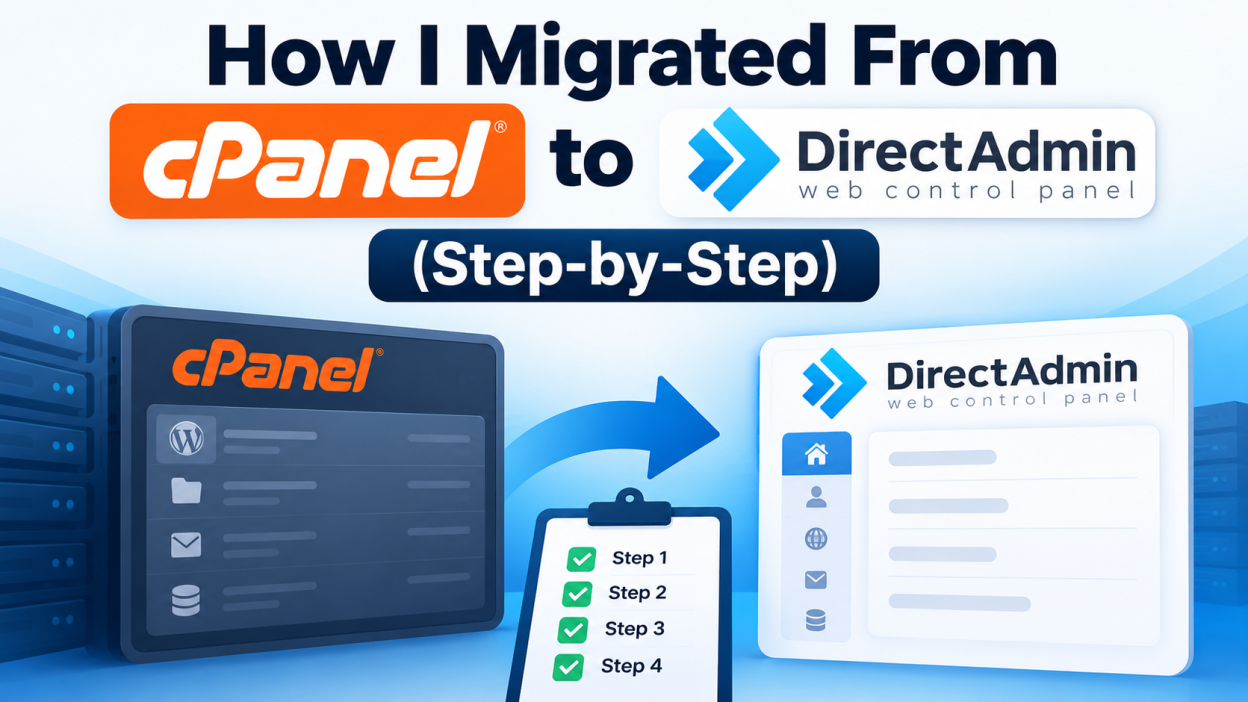
I made three of my client’s site migrate from cPanel to DirectAdmin last year, and honestly, I was nervous about it. I had used cPanel for almost six years at that point. It was the only control panel I really knew. But my hosting bills kept going up every renewal, and a friend who runs a small agency told me he switched to DirectAdmin and never looked back. So I decided to try it on one small site first before touching anything important.
This post is basically what I wish someone had told me before I started. No fancy talk, just what actually happened when I did it.
Why I Even Thought About Switching
The main reason to migrate from cPanel to DirectAdmin was money. cPanel changed their pricing model a few years back and started charging per account instead of a flat fee. If you’re a small agency or you host a bunch of client sites, this adds up fast. My monthly hosting cost had almost doubled in two years, and I wasn’t even adding new sites.
The second reason to migrate from cPanel to DirectAdmin was that my server felt sluggish. Someone told me cPanel uses more RAM and CPU than DirectAdmin because of how it’s built. I didn’t fully believe it until I saw it with my own eyes after switching. My server, same specs, felt noticeably faster once DirectAdmin was running instead of cPanel.
So those two things pushed me to finally look into it.
What I Was Scared Of
Let’s be honest about this part. I was scared of:
- Losing emails, since I have clients who would call me the second their email stopped working
- Databases breaking and websites going blank
- DNS taking forever to update and sites being down for hours
- Not knowing how to use a completely new interface
If you’re reading this because you’re thinking about switching too, you probably have the same worries. I did too, and it turned out to be way less scary than I expected. But I’m not going to pretend it was zero effort either.
Step 1: Pick a Host That Actually Supports DirectAdmin
This sounds obvious but I almost messed this up. Not every hosting provider offers DirectAdmin Hosting, and some only offer it on certain plans. I ended up going with a provider that had DirectAdmin specifically built into their shared hosting plans, with a free migration service included. That free migration part turned out to be a big deal, more on that later.
Before you commit, check a few things:
- Does the plan actually include the DirectAdmin license, or do you need to buy it separately
- Does the provider offer free migration, or do you have to do it yourself
- What’s the actual server hardware, NVMe storage makes a real difference for site speed
I spent about two days just comparing a handful of providers before picking one. Don’t rush this part, because moving twice is way more annoying than moving once.
Step 2: Back Up Everything First, No Matter What
Even if your new host offers free migration, back up your own copy of everything first. I cannot stress this enough. I made a full backup of:
- All website files, using File Manager to compress everything into a zip
- All databases, exported as SQL files through phpMyAdmin
- Email accounts and their settings, I wrote down every single email address and its forwarders
- DNS records, I took screenshots of every A record, MX record, and CNAME I had set up
I know it feels like overkill. It probably is overkill. But I’ve heard horror stories of migrations going wrong and people losing years of email history because they trusted the process completely. Trust it, but also have your own copy just in case.
Step 3: Let the Migration Team Do the Heavy Lifting, If You Can
While i tried to migrate from cPanel to DirectAdmin, his is the part that surprised me the most. I expected to manually move every file and database myself. Instead, my new host had a migration team that did it for me, completely free. All I had to do was submit my cPanel login details through a support ticket and tell them which domains to move.
They moved my files, databases, and email accounts over to DirectAdmin, and the site stayed live the entire time. I didn’t experience any downtime that my clients noticed, which honestly shocked me.
If your host offers this, use it. It removes almost all the risk from the process. If your host doesn’t offer free migration, you can still do it manually, it just takes longer and needs more attention to detail. I’ll cover the manual way briefly below too.
Step 3B: Doing It Manually, If You Don’t Have Migration Support
For one smaller site, I did the migration myself just to understand the process better. Here’s roughly what I did:
- Downloaded a full backup of the site files from cPanel’s File Manager
- Exported every database using phpMyAdmin, saving each as a separate SQL file
- Logged into the new DirectAdmin panel and created the website under my account
- Uploaded the site files through DirectAdmin’s File Manager, which looks a bit different from cPanel’s but works basically the same way
- Created new databases in DirectAdmin and imported my SQL files
- Updated the site’s config file (for me it was a WordPress site, so this meant editing wp-config.php with the new database name, username, and password)
- Recreated my email accounts one by one, since email doesn’t usually transfer automatically unless the migration tool handles it
- Tested the site using a temporary URL or by editing my local hosts file, before pointing the real domain over
It took me about half a day for one site, mostly because I was being careful and double checking everything. If you’ve got more than a couple of sites, honestly just ask if free migration is available. It’s worth it.
Step 4: Don’t Touch DNS Until You’ve Tested Everything
This is where a lot of people mess up, myself included on my very first attempt. I updated my domain’s nameservers before actually confirming the site worked properly on the new server. The site went down for about twenty minutes because something wasn’t configured right, and I had to scramble to fix it while traffic was already flowing.
The better way to do it: test the site fully on the new server first, using a temporary way to preview it (either a temporary URL your host gives you, or editing your local hosts file so only your computer sees the new server). Only once everything looks right, including the site loading, forms working, and emails sending, should you actually update your DNS or nameservers to point to the new host.
DNS changes can take anywhere from a few minutes to a few hours to fully propagate everywhere, so expect a short window where some visitors might still hit the old server. That’s normal and nothing to panic about.
Step 5: Update Your Email Client Settings
Even after the domain moves to DirectAdmin, your email client on your phone or laptop might still be configured with the old server settings. I had this happen with Outlook on my laptop, it kept trying to connect to the old cPanel mail server for a good day after the switch.
Go into your email client and check the incoming and outgoing mail server settings. They usually need to be updated to match your new DirectAdmin server. Your host’s support team can give you the exact settings if you’re not sure.
Step 6: Watch Everything Closely for the First Week
I kept a close eye on my sites for about a week after switching. Things I checked daily:
- Site loading speed and whether anything looked broken visually
- Whether emails were sending and receiving properly
- Contact forms and any site plugins that connect to the database
- Google Search Console, to make sure nothing was throwing crawl errors
Nothing major went wrong for me during this week, but I was glad I paid attention. On one site, I noticed a plugin was throwing an error because of a slightly different PHP version on the new server. Took five minutes to fix once I noticed it, but if I hadn’t been checking, it could have sat broken for weeks.
What Changed After the Switch
A few months in, here’s honestly what I noticed:
My hosting bill dropped noticeably, since DirectAdmin’s licensing isn’t tied to a per-account model like cPanel’s newer pricing. My server felt lighter, pages loaded a bit faster, and I wasn’t seeing the occasional slowdowns I used to get during traffic spikes. The interface took me maybe two days to get fully comfortable with, it’s laid out differently than cPanel but honestly not harder, just different icons and menu positions.
The one thing I’ll say is DirectAdmin doesn’t have quite as many third-party plugins and integrations as cPanel does, simply because cPanel has been around longer and has a bigger user base. For my use case, basic websites, WordPress, some email accounts, this didn’t matter at all. If you’re running something more complex with lots of specific cPanel plugins, it’s worth checking if DirectAdmin supports what you specifically need before switching.
My Honest Take
If you’re on the fence about migrating from cPanel to DirectAdmin, I’d say the switch is worth it for most small to medium website owners, especially if cost or server speed is bothering you. The actual migration, especially if your host offers a free migration service, is far less painful than I expected going in.
Just don’t skip the backup step, don’t rush the DNS change, and give yourself a week of paying a bit of extra attention after the switch. Do that, and you’ll probably be fine, same as I was.
Quick Recap
- Pick a host that actually supports DirectAdmin properly and check if they offer free migration
- Back up your files, databases, email settings, and DNS records yourself, even if the host is doing the migration
- Let the migration team handle the heavy lifting if that option exists
- Test everything on the new server before changing your DNS or nameservers
- Update your email client settings after the switch
- Keep an eye on things for about a week afterward
That’s basically the whole process. It sounds like a lot written out, but in practice it took me a few days total, most of which was just waiting and double-checking rather than actual hard work.
A Few Questions People Asked Me After I Did This
Since I’ve talked about this migration with a few other site owners and clients, here are the questions that came up more than once.
If your host offers a proper migration service, it shouldn’t, or at most you’ll see a few minutes here and there. My experience was zero noticeable downtime for the sites the migration team handled. The one site I did manually had about twenty minutes of downtime, but that was my own mistake with the DNS timing, not something inherent to the process itself.
Yes, nothing about this is permanent. If you decide DirectAdmin isn’t for you, you can migrate back the same way, or move to a different host entirely. I know a couple of people who tried DirectAdmin and went back to cPanel because they were more comfortable with the old layout, and that’s a completely fair reason too. For me, the cost savings and speed made it worth sticking with.
For the most part, no. If everything goes smoothly, visitors to the website won’t notice any difference at all. The one thing worth mentioning to clients is email, if their email accounts are on the same hosting, give them a heads up that they might need to update their mail app settings, just so they’re not confused if something looks off for a day.
For a single small website with one database and a handful of emails, expect somewhere between a few hours to a full day if you’re doing it yourself carefully. If your host’s migration team is doing it, it’s mostly just waiting, usually somewhere between a few hours and a day or two depending on how busy their support queue is and how many sites you’re moving at once.
If you’re thinking about making the switch, I’d say just start with one smaller, less important site first, the way I did. It takes the pressure off and lets you get comfortable with DirectAdmin before you move anything that really matters.